
TABLE OF CONTENTS
Introduction
Welcome to the knowledge base article on the Campaign Setup.
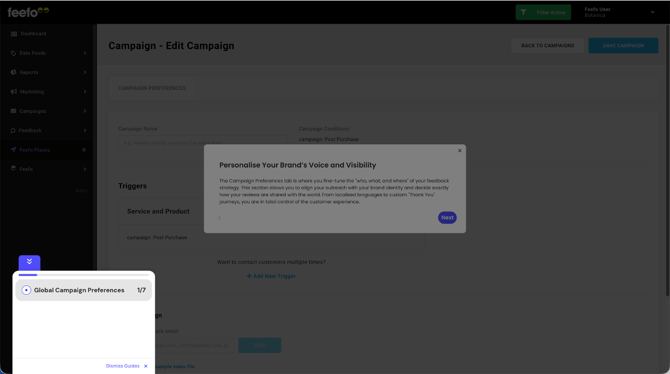
To access the Campaigns Setup
- Log in to the Hub.
- Navigate to 'Collection'.
- Click 'Manage campaigns' in the left-hand menu.
- Select a campaign and click 'Edit'
.png?width=151&height=57&name=Tooltip%20(1).png)
Test Campaign
The ‘Test campaign’ feature allows you to see what your feedback requests will look like when they’re sent out to your customers. It’s a great way to preview your campaign and make sure it’s set up correctly before sending it out to all your customers.
To test a campaign, simply enter your email address into the ‘Test campaign’ box below the default campaign and click ‘send’. If you have more than one campaign, click the ‘actions’ drop-down menu next to the campaign you wish to test and click ‘edit’. On the next page, scroll down to the ‘Test campaign’ box, enter your email address and click ‘send’.

You will be sent every email that would be sent to your customer throughout the campaign, such as the initial feedback request, feedback reminder email and ‘Not tried yet’ email reminder. If you have Feedback Request Manager Tool and have multiple triggers on your campaign, you will receive emails from each of these triggers too.
Follow these steps to test a feedback campaign in the Feefo Hub:
- Log in to the Feefo Hub and navigate to 'Collection > Manage Campaigns' in the left-hand menu.
- If you have the Feedback Request Manager Tool, select the campaign you want to test by clicking on the 'Actions' drop-down menu next to your chosen campaign and selecting 'Edit.'
- If you don't have the Feedback Request Manager Tool, you will already be on the right screen.
- Scroll down to the 'Test Campaign' section and enter the email address, or addresses, you want the test to be sent to.
- Click the 'Send' button and wait for the test email to arrive. If it doesn't arrive, make sure to check your junk folder.

Previewing Email Content
The Test Campaign feature allows you to receive every email that would be sent to your customers throughout the campaign, including the initial feedback request, feedback reminder email, and 'Not tried yet' email reminder. If your campaign has multiple triggers due to the Campaign Manager Tool, you will receive emails from each of these triggers as well.
Testing SMS Messages (If Applicable)
If you have Feefo SMS and your campaign is set up to send feedback requests via SMS, you will have the option to send test SMS messages as well. Please note that each test message sent is deducted from your monthly allowance. To avoid excessive deductions, it is advisable to use this feature sparingly.
Each test message sent is deducted from your monthly allowance. Since you could be sent multiple messages per test, we recommend you use this feature sparingly.
Using Triggers in Custom Campaigns
Triggers allow you to specify which feedback requests are sent to which customers, giving you full control over the feedback journey. Each trigger utilises tags to determine which data is sent to which campaign. You can find out more about sales tags here.

Any sales uploaded without a campaign tag that matches a trigger will have feedback requests sent from the default campaign.
If you have the same campaign tag across two or more campaigns, feedback requests will only be sent from the campaign which has the highest priority. Priority is determined by the campaign’s position in the list of custom campaigns. The campaign at the top of the list has the highest priority, whilst the one at the bottom has the lowest.
To change the priority of a campaign, simply hover your mouse in the white box of the campaign you want to move until a ‘hand’ cursor appears. Press and hold the left-hand mouse button and drag and drop the campaign to where you want it to sit.
To find out more about Feedback Request Manager Tool and add it to your account, get in touch with your dedicated Customer Success Manager or contact our support team.
Summary
Effectively utilising the Campaigns section of the Hub empowers you to tailor feedback campaigns to your business needs, enhancing response rates and gathering valuable feedback from your customers. By customising and managing campaigns, you can drive growth and improve customer satisfaction. For further assistance or to explore the Feedback Request Manager Tool, don't hesitate to contact our support team or your dedicated Customer Success Manager.