
TABLE OF CONTENTS
- What is Campaign Manager?
- How Campaign Manager Can Benefit Your Industry?
- Setting Up Multiple Campaigns
- Triggering Feedback Requests from a Non-Default Campaign
Unlock this advanced functionality by upgrading your core package.
What is Campaign Manager?
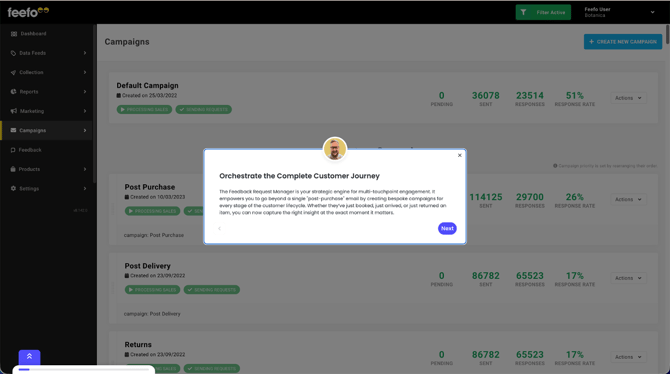
Campaign Manager empowers you to manage multiple campaigns within the Feefo Hub. This feature enables the creation and delivery of distinct feedback requests at various touch-points along the customer journey.
Each campaign can incorporate multiple touchpoints corresponding to different stages in the customer journey. At each touchpoint, you have the flexibility to dispatch personalised and customisable feedback requests to your customers.
With Campaign Manager, you can leverage personalisation to enhance response rates, tailor content and timing to suit diverse customer segments, gather valuable feedback throughout the entire customer journey, and collect private reviews.
.png?width=151&height=57&name=Tooltip%20(1).png)
For a comprehensive guide on configuring your campaign preferences, please refer to our dedicated article.
How Campaign Manager Can Benefit Your Industry?
Here are some industry-specific examples:
Retail
- Request feedback after a purchase.
- Request feedback after an item return.
- Request feedback after store collection.
Property
- Request feedback after a property valuation.
- Request feedback after a property viewing.
- Request feedback after a successful purchase or rental agreement completion.
Finance/Insurance Services
- Request feedback after receiving a quote.
- Request feedback after purchasing a service or policy.
- Request feedback after filing a claim.
- Request feedback after an interaction with customer services.
Recruitment
- Request feedback after an inbound enquiry.
- Request feedback after an interview.
- Request feedback after securing a position.
Travel
- Request feedback after booking.
- Request feedback after arrival.
- Request feedback after an excursion.
Automotive
- Request feedback after the purchase of a vehicle.
- Request feedback after a test drive.
- Request feedback after a service appointment at a dealership or garage.
Setting Up Multiple Campaigns
For added flexibility, each campaign you create can include multiple triggers if you need to contact customers multiple times. For instance, when collecting feedback on a holiday experience, you can include post-booking, post-arrival, and post-holiday requests within one campaign, requesting service and/or product feedback at each stage.
To add extra requests to a campaign you've established,
- Go to 'Collection'
- Select 'Manage Campaigns'
- Click on 'Create New Campaign' in the top right hand corner
-
Click on 'Basic campaign' and continue
-
Give the campaign a name, typically this will be the name of the touchpoint that you are sending to.
-
Go down to 'Triggers' and click on the drop down that says Select Tag Key.
-
Press C and select 'Campaign' or select any of the pre-populated Tag Keys.
-
Click on the drop down arrow against select values.
-
If you don’t have any values just scroll to the bottom to select Add new value and add a relevant tag value for the campaign. This can be anything you want.
-
Click on 'Save trigger' underneath.
-
Click on 'Save campaign' in the top right hand corner.
-
Click 'Go back to Campaigns' or select the 'Collection' tab down the left hand side of the account and click on manage campaigns and you will now see your new campaign.
-
Before uploading any data you need to ensure that the campaign is set to processing, so click on the actions button to the right of the campaign and click on start processing.
-
To update the feedback preferences and text on the specific campaign click on the actions button to the right of the campaign, click on edit and then click on feedback preferences
-
The tag key and value that you allocated to the new campaign needs to be added to the data file to ensure that the correct email gets sent out.
Triggering Feedback Requests from a Non-Default Campaign
Any Feefo sales or product tag can be utilised to trigger a feedback request. We recommend using the sales tag 'campaign' to manage your campaign triggers. If no tag or trigger is included in your sales data, the default campaign will be automatically employed.