
TABLE OF CONTENTS
Introduction
Feefo widgets allow you to display genuine customer reviews and ratings directly on your website. Showing verified feedback helps build trust, increase confidence, and support purchasing decisions.
This document provides technical implementation guidance for integrating Feefo Web Elements (widgets) into a website.
Feefo widgets are delivered as web components and rendered dynamically via the Feefo JavaScript library. Once implemented, widgets automatically retrieve and display review data associated with the configured Merchant Identifier and product SKUs.
All widgets available to you can be viewed in the Feefo hub https://hub.feefo.com/marketing/review-widgets
What Are Feefo Widgets?
Feefo widgets are small website components that display customer feedback, such as:
- Star ratings for products
- Full written customer reviews and AI summaries
- Customer uploaded media
- Review badges and pop‑ups
Once added, these widgets automatically display live feedback collected by Feefo.
What You’ll Need Before You Start
Before implementing any widgets, you will need:
Your Merchant Identifier
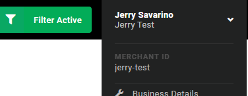 This is a unique ID provided to you by Feefo. It allows your website to connect securely to your Feefo account. You can locate this in the top right corner once you login into your Hub account:
Access to your website
Either direct access, or a developer / agency who can make small code changes on your behalf.
How Feefo Widgets Work
Feefo widgets work in two steps:
- A small Feefo script is added to your
- Widget tags are placed where you want reviews or star ratings to
Once this is done, the widgets automatically load and display the correct feedback for each product.
You do not need to manage or update the content manually - everything updates automatically.
Add the Feefo JavaScript Library
Before any widgets can appear, your website must load the Feefo JavaScript library. This script connects your website to Feefo and enables all widgets.
Important notes
- The script should be added to the page header
- It should be included only once per page
- Your Merchant Identifier must be added
Code example
<script type="text/javascript" src="https://api.feefo.com/api/javascript/{MERCHANT_IDENTIFIER}" async></script>
PLP Product Ratings
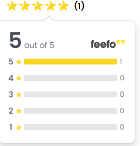
What is the product rating widget?
Product Rating displays an aggregate product rating presented as stars. They are typically shown on:
- Category pages
- Product listing pages
- Search result pages
They allow customers to quickly compare products.
How they are added
Once the Feefo script is installed, a Product Stars tag is added where the stars should appear.
Code examples
Using a product SKU:
<feefo-product-stars sku="{productSku}"></feefo-product-stars>
Using a parent product SKU:
<feefo-product-stars parent-product-sku="{parentSku}"></feefo-product-stars>
PDP Product Rating and On‑Page Product Reviews Widget
What is the on‑page widget?
The on‑page widget displays full customer reviews directly on your product pages. This includes:
- Star rating summary
- Written reviews
- Customer uploaded media (if enabled)
- AI Summaries and Trending Topics (if enabled)
- Customer feedback details
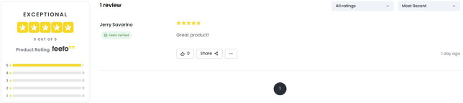
This widget is normally placed lower on the product page.
How it is added
Add the reviews tag where the reviews section should appear.
Code examples
Using a product SKU:
<feefo-product-reviews sku="{productSku}"></feefo-product-reviews>
Using a parent product SKU:
<feefo-product-reviews parent-product-sku="{parentSku}"></feefo-product-revie ws>
PDP Product Rating
The Product Star Anchor displays a small star rating near the top of the page. When clicked, it automatically scrolls the user down to the full reviews section.
This helps improve user experience and makes reviews easier to find.
Code example
<feefo-on-page-stars></feefo-on-page-stars>
This element works together with the on‑page reviews widget only.
Badge and Pop‑Up Widgets (Web Elements 2.0)
Feefo also offers badge and pop‑up designs that highlight your feedback visually.
Badge Designs
Product / Service Stars – Rectangle
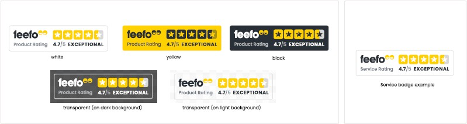
Product / Service Stars – Square
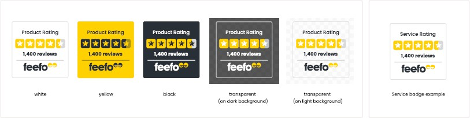
Combined Stars
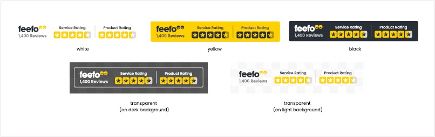
These are often used to:
- Reinforce trust
- Highlight review scores
- Help Increase conversion
Code examples
Using a product SKU:
<feefo-product-pop-up sku="{productSku}"></feefo-product-pop-up>
Using a parent product SKU:
<feefo-product-pop-up parent-product-sku="{parentSku}"></feefo-product-pop-up>
Display Service Badge:
<feefo-pop-up></feefo-pop-up>
If you would like to use a specific badge design, please contact Feefo.
Service Review Carousel
What is the Service Reviews Carousel?
The Service Review Carousel is a rotating display that showcases your top customer reviews.
Instead of showing reviews in a static list, the carousel presents them in a sliding, interactive layout - making it ideal for:
-
Homepages
-
Landing pages
-
Dedicated review / testimonial pages
-
Promotional pages
It allows you to highlight positive customer experiences in a clean, modern way.
Why use it?
The Service Review Carousel helps you:
-
Reinforce trust quickly
-
Showcase your best feedback
-
Create visual impact
-
Increase customer confidence
Because it rotates automatically, it draws attention without overwhelming the page.
Code example
<feefo-service-carousel></feefo-service-carousel>
Where should it be placed?
Most businesses add the Service Review Carousel:
-
Below the homepage hero banner
-
Above the footer
-
On key landing pages
-
On “Why Choose Us” or “About Us” sections
Your developer can position it to suit your page layout.
Displaying Reviews Using Tags in Widget 2.0
What are Feefo Tags?
Tags are custom labels (key-value pairs such as store=London, category=footwear, or channel=online) attached to your sales data. They allow you to categorise and segment your reviews based on attributes relevant to your business, such as location, department or brand.
Why use Tags in Widgets?
Adding tags to your Feefo widgets allows you to filter and display targeted reviews directly on specific pages:
- Location-Specific Pages: Display reviews for a particular branch or store (e.g.
- Channel or Service Segmentation: Separate in-store vs. online shopping reviews or different business departments.
- Category or Campaign Pages: Curate reviews for specific product lines, brands or seasonal campaigns.
To filter reviews by tag, add the “tags” attribute to any Feefo 2.0 widget element.
<feefo-product-reviews tags=“brand=Dell”></feefo-product-reviews>
<feefo-pop-up tags=“store=London”></feefo-pop-up>
- Consistency: Ensure tag keys and values in the widget match the exact casing and spelling sent with your data files.
- Review Volumes: Ensure the filtered tag has sufficient review volume to display a representative rating and customer feedback.
Customising 2.0 Widget Display
With Feefo 2.0 widgets, you have control over the look, feel and content of your widgets from directly within the Feefo Hub – without needing to edit the code on your website. Any changes you make and save in the Hub update dynamically on your live site.
To explore and configure your widget settings, visit the Feefo Hub Widget Gallery by
navigating to “Marketing > Widgets Gallery” or click on the link below:
https://hub.feefo.com/marketing/review-widgets
When configuring the ‘On-Page Reviews’ Widget, you can tailor the following settings to match your brand and display preferences:

Design & Colours
Star / Accent Colours: Customise the primary star rating colour to seamlessly match your brand’s palette.
Font Scale: Adjust font sizing to align with your website’s design hierarchy and responsive layout.
AI Summary & Insights
AI Summary Toggle: Enable or disable AI-generated review summaries and topic snippets at the top of your review feed. When active, this gives shoppers an instant overview of key customer sentiment and highlights.

Product Attributes & Media
Customer Media: Choose whether to display customer-uploaded images alongside written feedback.
Attributes & Fit Ratings: Show specific rating breakdowns (such as sizing, quality, fit or “Would Buy Again” scores) alongside overall star ratings.
Trust Badges: Toggle the visibility of earned accreditations, including your Trusted Service Award, Treefo or Ethy badges directly within the widget header.
Comment-Only Reviews: Hide rating-only feedback so only reviews with written comments appear.
Merchant Responses: Control whether your published replies to customer reviews are shown.
Automatic Translations: Allow visitors to view reviews translated into their browser’s preferred language.
Other display widgets have their own set of customisation options, all of which are available to view in the Feefo Hub.
- Go to “Marketing > Widgets Gallery” in the Feefo Hub.
- Select the widget you want to modify (e.g ‘On-Page Reviews’).
- Adjust your design and display settings in the customisation panel.
- Click Save Changes – your live widgets will update automatically.
Common Questions & Support
Do I need a developer?
In most cases, yes - a developer or agency will add the code for you. However, the changes are usually quick and minimal.
Will this affect my website speed?
Feefo widgets load asynchronously and are designed to minimise impact on page performance.
Who do I contact for help?
Please contact Feefo (support@feefo.com or your dedicated Customer Success contact)