
TABLE OF CONTENTS
Overview
The Feefo Social Upload Widget enables brands to collect user‑generated content (UGC) through a customisable upload experience. The widget can be launched via:
- Email campaigns (Klaviyo, Dotdigital, HubSpot, Mailchimp, etc.)
- QR codes generated inside the Feefo Social Dashboard
- Direct links embedded on websites, landing pages, or SMS flows
This document explains the required URL parameters, optional filters, and best practices for integrating the widget into Klaviyo, Mailchimp or any other ESP.
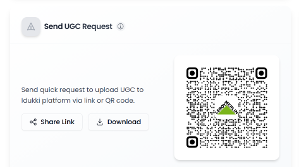
Users can access it via Homepage, to download as QR Code, image o just simply the link.
It’s available for all users.
Upload Widget Overview
The widget allows customers to:
- Select a product
- Upload photos or videos
- Provide consent and personal details
- Submit content for brand review
Brands can:
- Receive notifications
- Moderate submissions
- Approve or reject content
- Auto‑tag products
- Add content to LIVE Collections
- Track campaign performance
Base URL Structure
The Feefo Social Upload Widget is accessed through a base URL that determines which brand configuration, theme, and upload workflow is loaded. This URL can be customised at multiple levels depending on the brand’s setup and domain preferences.
Default Feefo Social Base URL
The standard upload widget URL is:
https://social.feefo.com/dashboard/my-media
This URL is used by most brands and is the default entry point for all upload flows unless a custom domain or branded subdomain is configured.
Branded Subdomain URL (Recommended for Enterprise)
Feefo Social supports branded subdomains for a more seamless customer experience. This allows the upload widget to appear under a brand‑specific domain managed by Feefo.
Example:
https://leroymerlin.feefo.com/dashboard/my-media
Benefits of branded subdomains
- Stronger brand trust
- Higher email deliverability (ESP links look more legitimate)
- Better customer experience
- No DNS setup required by the brand
- Fully managed by Feefo Social (SSL, routing, uptime)
How it works
- Feefo provisions a subdomain: brandname.feefo.com
- The subdomain is mapped to the brand’s bguid
- All upload flows automatically load the correct branding, colours, and configuration
Fully Custom Domain (White‑Label Option)
For brands requiring complete white‑labeling, Feefo supports custom domains owned by the brand.
Example:
https://ugcupload.leroymerlin.co.za
Requirements
- Brand must own the domain
- Brand adds a DNS CNAME record pointing to Feefo Social
- The domain is mapped to the brand’s bguid
Benefits
- 100% white‑label experience
- No visible Feefo Social branding in the URL
- Ideal for enterprise, retail, and regulated industries
- Higher trust for customers scanning QR codes or clicking email links
How the Base URL Determines Brand Configuration
Regardless of which domain is used:
- bguid is the source of truth for brand configuration
- The domain simply determines the entry point
- The widget loads:
- Brand logo
- Colours
- Fonts
- Allowed file formats
- Product catalogue
- Consent text
- Multi‑step flow
- Language/localisation
Routing Logic (Simplified)
- User opens URL
- Domain → identifies brand context
- bguid → loads brand configuration
- Query parameters → personalise the experience
- Widget renders with correct theme and product data
Example URL Variants
- Default Feefo Social Domain
https://social.feefo.com/dashboard/my-media?bguid=XXXX&name=&email=&campaign=SummerUGC - Branded Subdomain
https://leroymerlin.feefo.com/upload?bguid=XXXX&name=&email=&campaign=SummerUGC - Fully Custom Domain
https://ugcupload.leroymerlin.co.za/upload?bguid=XXXX&name=&email=&campaign=SummerUGC
All three URLs behave identically — the only difference is branding and customer trust.
When to Use Each Domain Type
|
Domain Type |
Use Case |
Notes |
|
widget.feefo.com |
Default, fast setup |
No DNS changes required |
|
brand.feefo.com |
Enterprise branding |
Managed by Feefo Social |
|
custom brand domain |
Full white‑label |
Requires DNS setup |
ESP Compatibility
All domain types work seamlessly with:
- Dotdigital
- Klaviyo
- HubSpot
- Mailchimp
- Attentive
- SMS platforms
- QR code generators
- Website embeds
No additional configuration is required.
Security & SSL
- All domains (default, subdomain, custom) are served over HTTPS
- SSL certificates are automatically provisioned and renewed
- No action required from the brand
Best Practices for Choosing a Domain
Use the default domain if:
- You want the fastest setup
- You don’t need white‑labeling
Use a branded subdomain if:
- You want a branded experience
- You want Feefo to manage everything
- You want higher trust in email links
Use a custom domain if:
- You require full white‑labeling
- You want the upload widget to appear fully native
- You want to use the domain in packaging, stores, or campaigns
Required Parameters
|
Parameter |
Required |
Description |
|
bguid |
✔ Yes |
Identifies your brand configuration. |
|
name |
✔ Yes |
Pre‑fills customer name. |
|
|
✔ Yes |
Pre‑fills customer email. |
|
campaign |
✔ Yes |
Tracks campaign performance. |
Optional Parameters
|
Parameter |
Required |
Description |
|
pid |
Optional |
Comma‑separated SKUs to restrict product selection. |
|
selectProduct |
Optional |
Enables full product search when set to any. |
|
utm parameters |
Optional |
For analytics tracking. |
Product Selection Logic
Full Product Search
&selectProduct=any
Restricted SKU List
&pid=SKU1,SKU2,SKU3
Auto‑Selected Product
If only one SKU is passed, the widget auto‑selects it.
Access Methods
Customers can access the upload widget through:
-
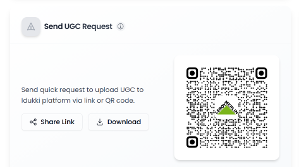
Direct Link - Available on the Feefo Social Dashboard under “Send UGC Request”.
-
QR Code - Auto‑generated on the dashboard.
-
Automated Campaigns - Works with all major ESPs.
Customer Upload Flow
The following outlines the step-by-step process a customer follows when submitting media via the upload widget:
|
Step |
Description |
|
Start |
Customer accesses the upload widget via direct link, QR code, or automated campaign. |
|
Product Selection |
If one SKU is present, it is auto-selected; otherwise, the customer chooses the desired product. |
|
Upload Media |
Customer uploads their images, videos, or other user-generated content. |
|
Consent & Details |
Customer provides necessary consent and enters relevant details (e.g., name, email). |
|
Submit |
Submission is completed by the customer. |
|
Success Screen |
Customer sees confirmation of a successful upload. |
Brand Notification Flow
Once a customer submits their media, the following actions occur:
- Brand receives an instant notification.
- The upload enters Pending Approval status.
- Team members are able to review the submission.
Moderation & Approval Flowchart
Pending → Review → Approve → LIVE Collections
Pending → Review → Reject → Archive
The Moderation & Approval Workflow operates as follows:
|
Step |
Action |
Outcome |
|
1. Pending |
Content submitted and awaits team review |
Moves to Review |
|
2. Review |
Team assesses quality, compliance, suitability |
Approve or Reject |
|
3a. Approve |
Content meets criteria |
Published to LIVE Collections, homepage galleries, PDP widgets, campaign galleries, shoppable UGC |
|
3b. Reject |
Content does not meet requirements |
Archived for record-keeping |
This flowchart visually represents the moderation and approval process, beginning with content submission and culminating in either publication to various galleries or archiving if rejected. Each step is designed to ensure only suitable content is displayed on the platform.
Product Auto‑Tagging
- Widget auto‑tags based on customer selection
- Brand can add/remove/edit product tags
Distribution to LIVE Collections
Approved content can be added to:
- LIVE Collections
- Homepage galleries
- PDP widgets
- Campaign galleries
- Shoppable UGC displays
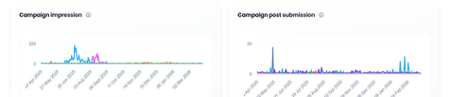
Campaign Analytics & Attribution
Campaign Metrics
|
Metric |
Description |
|
QR Code Scans |
Number of scans |
|
Link Clicks |
Number of URL opens |
|
Uploads Started |
Users who began the flow |
|
Uploads Completed |
Successful submissions |
|
Approval Rate |
Approved vs rejected |
|
Product‑level UGC Count |
Uploads per SKU |
|
Campaign Attribution |
Based on campaign= parameter |
Example URLs
Full Product Search
https://social.feefo.com/dashboard/my-media?bguid=05d836ad-90ef-48e1-8045-a74af4b3327f
&name=@FIRSTNAME@
&email=@EMAIL@
&campaign=Feefo SocialUGCCollectGiveaway
&selectProduct=any
Restricted SKUs
https://social.feefo.com/dashboard/my-media?bguid=05d836ad-90ef-48e1-8045-a74af4b3327f
&name=@FIRSTNAME@
&email=@EMAIL@
&campaign=Feefo SocialUGCCollectGiveaway
&pid=81429042,81481651
Summary
The Feefo Social Upload Widget provides a complete UGC pipeline:
- Multiple access methods
- Dynamic personalisation
- Product‑aware upload flow
- Auto‑tagging
- Moderation & approval
- LIVE distribution
- Campaign analytics