
TABLE OF CONTENTS
Introduction
HubSpot, a premier CRM, marketing, sales, and customer service software provider, is dedicated to helping businesses amplify their sales and growth. This integration capability ensures a unified and efficient approach to managing customer relationships and driving business success.
Template Solutions
|
Name |
Trigger |
Action |
Description |
|---|---|---|---|
|
Send Feefo Feedback Request from a new contact in a list in HubSpot |
New contact added to a list in HubSpot |
Create feedback request in Feefo |
Automatically sync new Feefo reviews to HubSpot contact records, your sales and support teams gain instant visibility into customer sentiment. This flow eliminates manual data entry, allowing you to personalise outreach, improve retention strategies, and respond to feedback faster than ever. |
|
Create a new HubSpot note when Feefo Feedback request received |
Feedback Created (Feefo) |
New note created on a contact in HubSpot |
This flow automatically logs a note in HubSpot whenever a Feefo feedback request is sent, ensuring your CRM reflects every customer interaction. By centralizing outreach history, you empower your sales and support teams with real-time visibility without manual data entry. |
|
Create a new HubSpot Contact Field for the latest Feefo Review left |
Feedback Created (Feefo)
|
Create a new contact field with latest rating in HubSpot |
This flow automatically updates a custom HubSpot contact field with the details of the latest Feefo service review left by a customer. By surfacing recent feedback directly within your CRM, your team can instantly gauge sentiment before every interaction. |
|
Create a HubSpot ticket for Negative Feefo Ratings |
Feedback Created (Feefo)
|
Create a ticket in HubSpot |
When a customer leaves a negative review on Feefo, this flow immediately creates a HubSpot ticket for your service team. By ensuring rapid follow-up on concerns, you can proactively resolve issues, protect your brand reputation, and turn unhappy reviewers into loyal advocates. |
|
Respond to Feefo Reviews from HubSpot Contact Profile |
Response to review left in HubSpot |
Respond to feedback (Feefo) |
This flow allows you to respond to Feefo reviews directly from the HubSpot contact profile. By centralising your communication, you save time switching between platforms and ensure your team can react to feedback instantly. |
Available triggers
Triggers are the events that start the flow. All triggers run in real-time, i,e, data is transferred at the moment the event occurs
-
New Contact Added
-
Contact Updated
-
New Deal Added
-
Deal Updated
-
Deal Status Changed
-
Consolidation of Deals
-
The Deal has been Deleted
-
New deal added (Custom fields in row section)
-
Deal updated (Custom fields in row section)
-
New Ticket
-
Update Ticket
-
New Company
-
Company Changed
-
New Note
-
New Email Logged
-
New Contact in List
-
New Call Logged
-
Form Submitted
-
New Meeting Created
-
Meeting Outcome Updated
-
New Task
Actions are what Feefo performs when your flow is running. Actions also allow you to transfer data to other apps and systems.
-
Create new Contact
-
Update Contact
-
Create or Update a Contact
-
Get a Contact by ID
-
Find Contact
-
Find Meeting
-
Get a List of Contact associations by Type
-
Get a List of Meeting associations by Type
-
Get a List of Note associations by Type
-
New Deal
-
Update the Deal
-
Find Deals
-
Get Deal by ID
-
Get a List of Deal associations by Type
-
Associate a Communication with another Object
-
Create new Task
-
Find Task by ID
-
Search Tasks (by query text)
-
Find Tasks associated to Contact ID
-
Update Task
-
Associate a Task with another Object
-
Create New Ticket
-
Update Ticket
-
Create new Note
-
Update Note
-
Associate a Note with another Object
-
Associate a Meeting with another Object
-
Get Object properties
-
Update an object property
-
Custom API request
-
Send a transactional email
-
Submit data to a form
-
Get the pipeline of an object by ID
-
Get the pipeline stage of an object by ID
-
Link items of goods/services to a deal
-
Product Search Search for the owner by Email
-
Create a Company
-
Update a Company
-
Company search
-
Create an Email Engagement
-
Associate an Email Engagement with another Object
-
Create a Communication
-
Associate a Deal with another Object
-
Get Line Item by ID
-
Remove Contacts From List
-
Add Contact to List
-
Associate a Contact with another Object
-
Associate a Company with another Object
-
Create a product
-
Create Meeting
-
Update Meeting
-
Get a list of email associations
-
Log a LinkedIn message
-
Get Company by ID
-
Enroll contact in sequence
-
Get details of a specific sequence by ID
-
Check if contact is enrolled in an active sequence
Connect the App
-
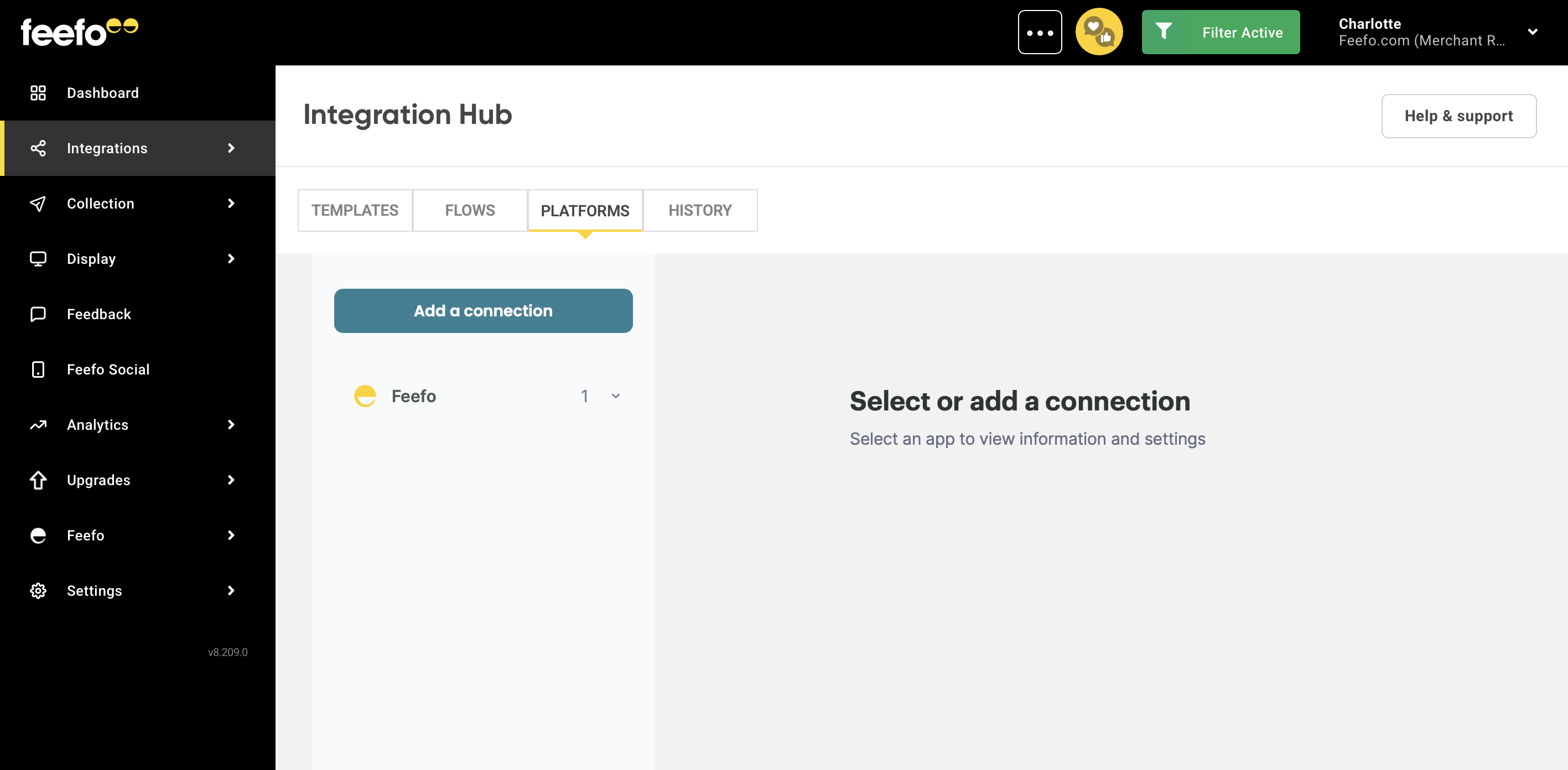
Open the Integrations Tab, click the Integration Hub.
- Select the Platforms tab.
-
Add a connection button.
-
Find HubSpot in the search bar.
-
Click the Grant access button.
-
In the authorisation window select your account.
Ready! Open the created connection. In the Integration Hub section you can change the name of your connection and refresh its access.