
TABLE OF CONTENTS
Introduction
Salesforce Commerce Cloud (now often referred to as Agentforce Commerce) is a cloud-based, AI-powered SaaS platform designed to help businesses create unified, seamless shopping experiences across all channels—mobile, social, web, and in-store.
Template Solutions
|
Name |
Trigger |
Action |
Description |
|---|---|---|---|
|
Send Feefo Feedback Request from new order in Salesforce Commerce Cloud |
New sale created in Salesforce Commerce Cloud |
Create feedback request (Feefo) |
This flow instantly triggers a Feefo feedback request the moment a new order is placed in Salesforce Commerce Cloud. By automating your outreach, you maximise response rates and build social proof without any manual effort. |
|
Create Smartlink Feedback request from new order in Salesforce Commerce Cloud |
New sale created in Salesforce Commerce Cloud |
Create Feedback Request link (Feefo) |
This flow generates a unique Feefo link to be used in your own emails, when a new order is placed. By automating the request process, you provide customers with a frictionless way to share their experience right after purchase. |
Triggers are the events that trigger the automation, All triggers run in real-time, i,e, data is transferred at the moment the event occurs
-
New order created
Actions are what Feefo performs when your automation is running, Actions also allow you to transfer data to other apps and systems
- Custom API request
- Get Order Shipments
Before setting up integrations with Salesforce Commerce Cloud connect the app.
Connect the App
-
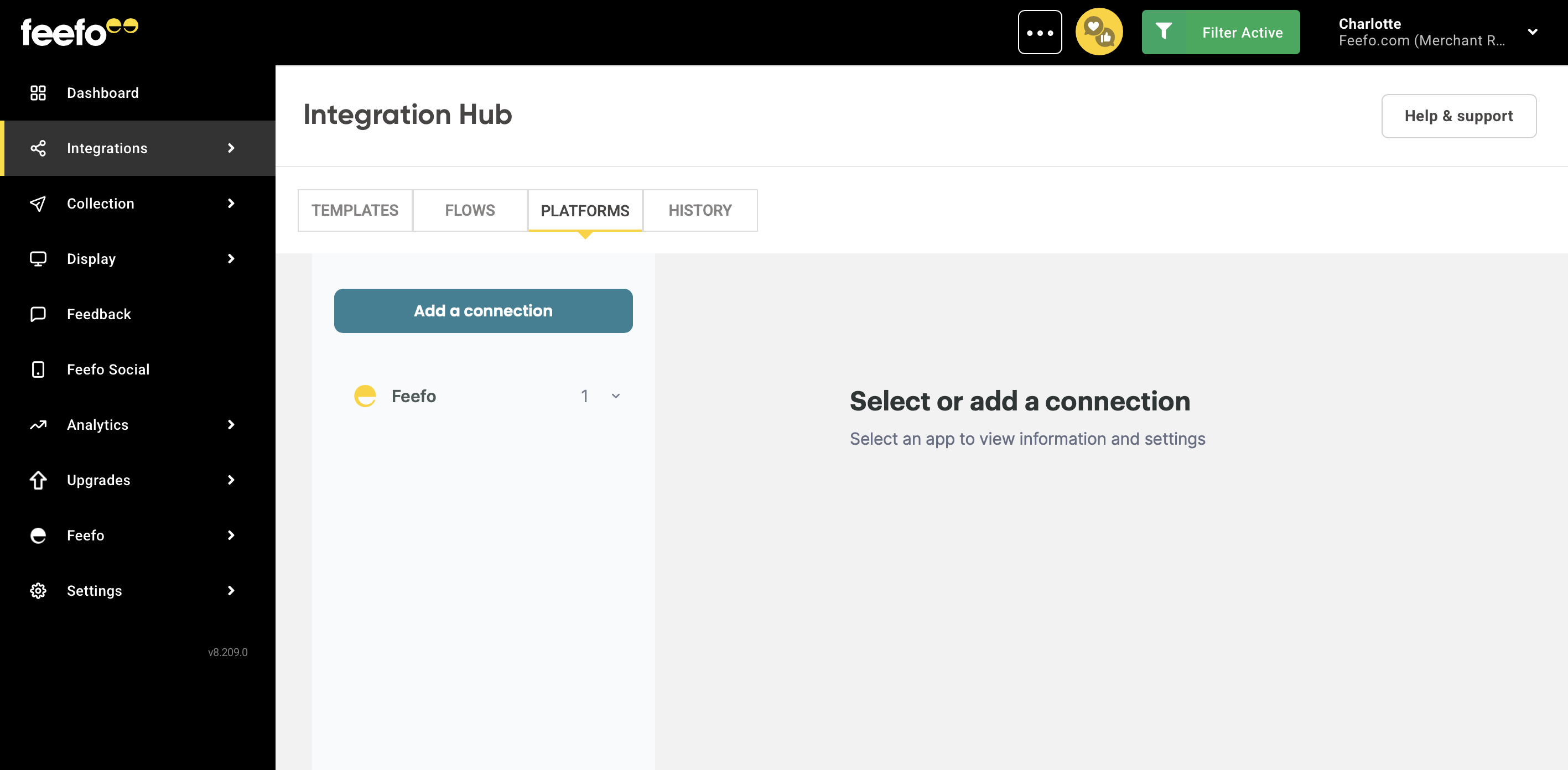
Open the Integrations Tab, click the Integration Hub.
- Select the Platforms tab.
-
Add a connection button.
-
Find Salesforce Commerce Cloud in the search bar.
-
Click the Grant access button.
-
In the authorisation window select your account.
Ready! Open the created connection. In the Integration Hub section you can change the name of your connection and refresh its access.