
TABLE OF CONTENTS
Introduction
Mailchimp stands as a comprehensive marketing platform, designed to foster communication with clients, customers, and prospects through its emphasis on effective contact management, stunning email designs, unique automation workflows, and insightful data analysis.
Triggers are the events that start the flow. All triggers run in real-time, i,e, data is transferred at the moment the event occurs
-
New List/Audience
-
New Campaign
-
New subscriber in the list
Actions are what Feefo performs when your flow is running. Actions also allow you to transfer data to other apps and systems
-
Add a tag to a subscriber
-
Remove tag from subscriber
-
Add an event for a list member.
-
Archive Subscriber
-
Send Campaign
-
Add Note to Subscriber
-
Create campaign
-
Custom API request
-
Add subscriber to the list
Before setting up integrations with MailChimp connect the app.
-
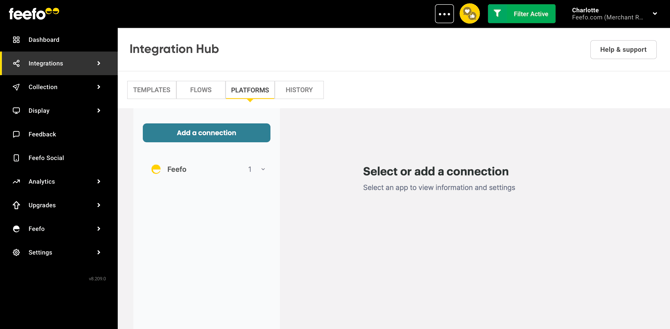
To do this, go to the Platforms section and click the Add a connection button.
-
Select the app and click the Add a connection button.
-
Select Mailchimp by choosing the Email Marketing category or using the search field.
-
Then click the "Add a connection" button. This process is similar to how you might set up Mailchimp plugins or access the Mailchimp marketplace for additional functionality.
-
Create a name for the connection. This is optional but helps differentiate between multiple connections.
-
Grant Feefo access to your Mailchimp account. Enter your account details and agree to the terms. This step is crucial for establishing the email Mailchimp integration.
- Your connection is ready! You can now use your Mailchimp connection in your automation scenarios.
Ready! Open the created connection. In the Platforms section you can change the name of your connection and refresh its access.