
TABLE OF CONTENTS
Introduction
WooCommerce is an open-source e-commerce platform that helps merchants and developers build successful businesses for the long term. It is designed for small to large-sized online merchants using WordPress.
Template Solutions
|
Name |
Trigger |
Action |
Description |
|---|---|---|---|
|
Send Feefo Feedback Request from new order in WooCommerce |
New sale created in WooCommerce |
Create feedback request (Feefo) |
This automation instantly triggers a Feefo feedback request the moment a new order is placed in WooCommerce. By automating your outreach, you maximize response rates and build social proof without any manual effort. |
|
Create Smartlink Feedback request from new order in WooCommerce |
New sale created in WooCommerce |
Create Feedback Request link (Feefo) |
This automation generates a unique Feefo link to be used in your own emails, when a new order is placed. By automating the request process, you provide customers with a frictionless way to share their experience right after purchase. |
Please note that to use the Smartlink Feedback request template, you need to have the Smartlink feature active on your account.
Triggers are the events that start the flow. All triggers run in real-time, i,e, data is transferred at the moment the event occurs
-
New order
-
The order is changed
-
New coupon
-
Сoupon updated
-
New customer
-
Customer updated
Actions are what Feefo performs when your flow is running. Actions also allow you to transfer data to other apps and systems
-
Create product tag
-
Update product tag
-
Delete product tag
-
Add a product category
-
Update a product category
-
Delete a product category
-
Create a product
-
Retrieve a product
-
Search product tag
-
Get product category
-
Update product data
-
Create a product attribute
-
Retrieve a product attribute
-
Update a product attribute
-
Delete product attribute
Before setting up integrations with WooCommerce connect the app.
Connect the App
-
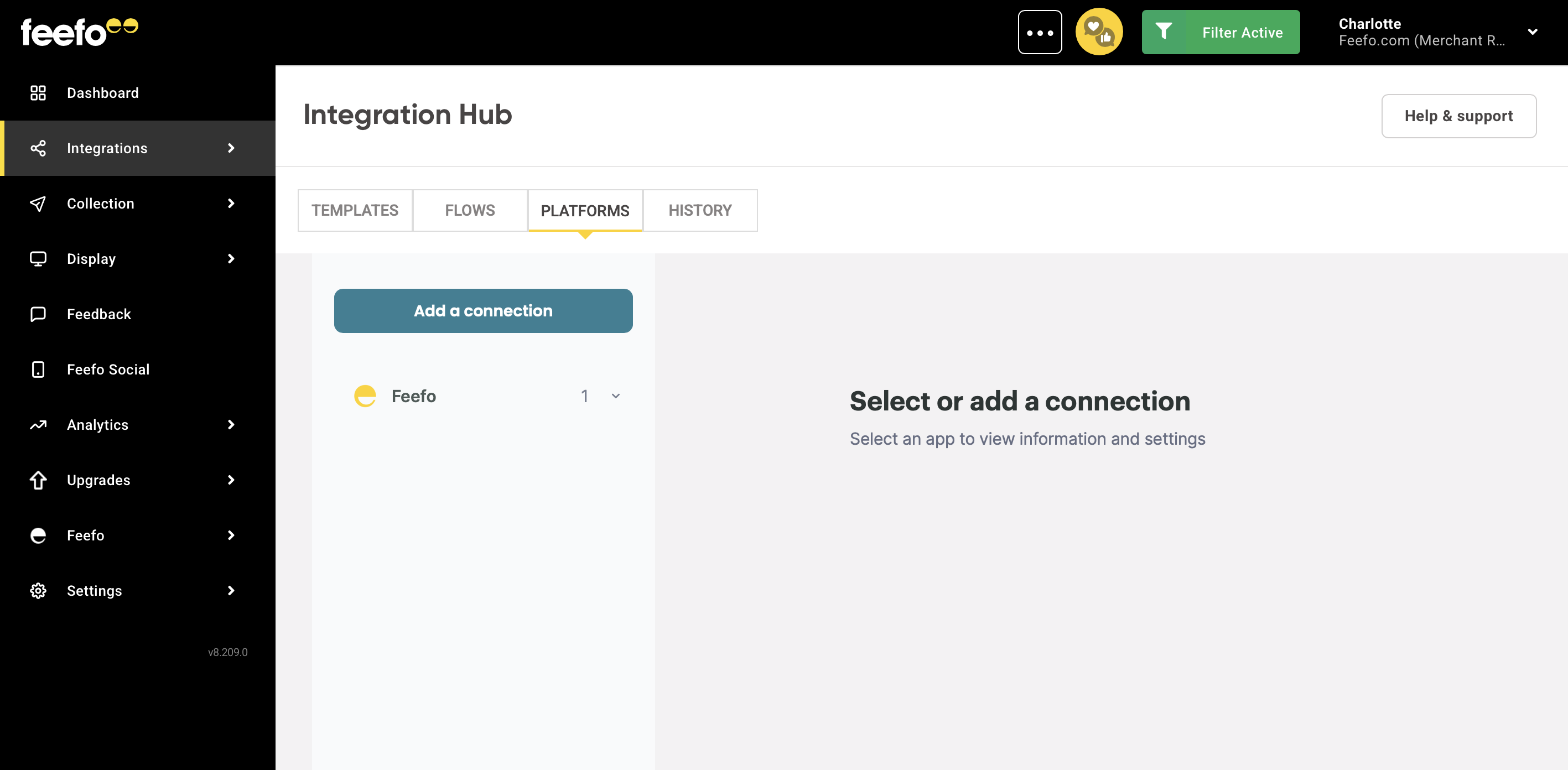
Open the Integrations Tab, click the Integration Hub.
-
Add a connection button.
-
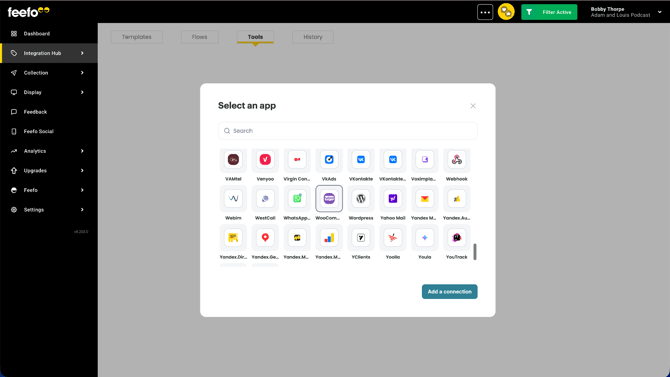
Find WooCommerce in the search bar.
-
Click the Add a connection button.
-
Come up with a name for your connection.
-
Enter your WordPress store domain after "https://" and before the first slash "/".
-
Click the Continue button.
- Grant Feefo access in the pop-up window.
Ready! Open the created connection. In the Integration Hub section you can change the name of your connection and refresh its access.