
TABLE OF CONTENTS
Introduction
Zendesk is a customer support platform that helps process requests via email, chat, social media, and other channels. Suitable for support services of any scale.
Template Solutions
|
Name |
Trigger |
Action |
Description |
|---|---|---|---|
|
Create a Zendesk ticket for Negative Feefo Ratings |
Negative feedback rating left in Feefo |
Create a ticket in Zendesk |
When a customer leaves a negative review on Feefo, this flow immediately creates a Zendesk ticket for your service team. By ensuring rapid follow-up on concerns, you can proactively resolve issues, protect your brand reputation, and turn unhappy reviewers into loyal advocates. |
|
Flag a Feefo review for Moderation in Zendesk |
Review marked as moderation required in Zendesk |
Request moderation by feedback ID (Feefo) |
This flow lets you flag Feefo reviews for moderation directly from Zendesk. Whether it’s inappropriate content or a factual error, you can trigger a review request without switching apps. By streamlining the moderation process, you ensure your public feedback remains accurate and trustworthy, allowing your team to maintain high standards of customer transparency while saving time on manual reporting. |
|
Respond to a Feefo review in Zendesk |
Respond to feedback in Zendesk on a contact |
Respond to Feedback (Feefo) |
This flow allows your team to view and respond to Feefo reviews without ever leaving Zendesk. By centralizing feedback alongside your support tickets, you eliminate platform-switching and ensure faster, more consistent responses. |
|
Request review based on customer service via Zendesk |
Ticket closed in Zendesk |
Create Feedback Request (Feefo) |
This flow triggers a Feefo review request the moment a support ticket is solved in Zendesk. By capturing feedback while the service experience is top-of-mind, you gain valuable insights into your team's performance and build public trust. |
Triggers are the events that start the flow. All triggers run in real-time, i,e, data is transferred at the moment the event occurs
-
Ticket Created
-
Ticket Status Changed
-
Ticket Priority Changed
Actions are what Feefo performs when your flow is running. Actions also allow you to transfer data to other apps and systems
-
New User
-
Get User by Id
-
New ticket
-
Update ticket by ID
-
Get ticket by ID
-
Ticket search
-
Custom API request
-
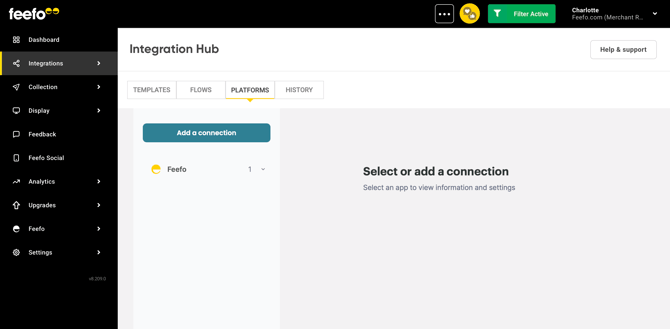
Open the Integration Tab, click the Integration Hub.
- On the Platforms tab, select the Add a connection button.
-
In the search bar, type Zendesk and select it from the menu. Then, click Add a connection to start the setup process.
-
Choose a Name for your connection
-
To obtain your Domain, sign in to your Zendesk account and go to Admin page.
-
Your domain can be found in the top right corner of the Admin page or in your browser's address bar once you have logged in.
-
Enter the required information into the Albato connection field and click Continue.
-
Grant Feefo access to your Zendesk account.
-
Then click Allow to complete the connection.
Ready! Open the created connection. In the Integration Hub section you can change the name of your connection and refresh its access.