
Table of Contents
-
Add automatic sources (hashtags, tagged, username, reels, stories)
- Curate and manage your imported content.
- Practical examples for merchants.
Understand the basics: Collections and Sources
Collections
A collection is like a folder where all your content for a campaign or page lives (e.g. “Homepage UGC”, “Instagram Shop”, “Mallewear All Content”).
Sources
You can bring content into a collection in two ways:
- Automatic sources – hashtags, tagged posts, usernames, reels, etc. (Feefo checks these every 24 hours)
- Manual imports – upload files, paste URLs, or use CSV for bulk imports
You can mix both in the same collection.
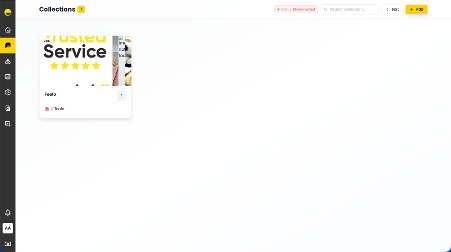
Open or create a collection
- Log in to your Feefo Hub.
- Click Feefo Social.
- From the left menu, go to your Collections.
- Either:
- Click an existing collection (e.g. “ALL CONTENT – AUTO Sync”), or
- Click Create Collection and follow the prompts (name, brand, etc.).
Once inside, you’ll see:
- Your content grid (posts, reels, images, etc.)
- A top bar with options like Sync Feed, Import Media, Clear Cache, Preview, Curate
- A dropdown showing which sources are connected (e.g. mallewear +3)
Add automatic sources (hashtags, tagged, username, reels, stories)
These sources automatically bring in fresh content every 24 hours.
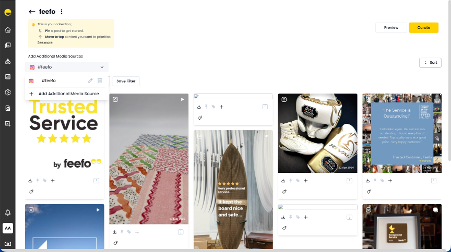
Open “Add Additional Media Sources”
- Inside your collection, look for Add Media Source / Add Additional Media Sources.
- Click it to open the media source screen.
You’ll see options like:
- Instagram (Hashtags, Tagged, Reels, Username, Stories)
- Other platforms (Twitter/X, TikTok, YouTube, etc.)
We’ll focus on Instagram‑style UGC here.
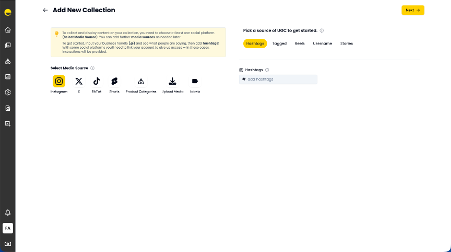
Add hashtags
Use this to collect posts where people use your brand or campaign hashtags.
- In the right panel, choose Hashtags.
- In the # add hashtags field, type your hashtags, for example:
- #mallewear
- #mallepets
- #mallecommunity
- You can add multiple hashtags.
- Click Next or Save (depending on your UI).
What happens next?
- Feefo will start monitoring these hashtags.
- New posts using these hashtags will be fetched automatically every 24 hours.
- They will appear in your collection under ALL CONTENT.
Add tagged posts
Use this to collect posts where customers tag your account.
- In the same “Pick a source of UGC” panel, click Tagged.
- Enter your Instagram business handle (e.g. @mallewear).
- Save.
Result:
Any post where users tag your account will be pulled into this collection (checked every 24 hours).
Add usernames (creators, ambassadors, your own brand account)
Use this to pull content from specific accounts.
- Click Username.
- Enter one or more Instagram usernames, for example:
- @mallewear
- @influencer1
- @brand_ambassador
- Save.
Result:
Feefo will fetch posts from these accounts into your collection.
Add reels as a source
Use this to automatically pull reels from specific accounts or hashtags (depending on your setup).
- Click Reels.
- Enter the relevant handle(s) or configuration as per your account setup.
- Save.
Result:
Reels from these sources will be added to your collection automatically.
Manual sync (on‑demand refresh)
Even though Feefo checks every 24 hours, you can force a refresh:
- Inside your collection, click Sync Feed (often in the three‑dot menu or top bar).
- Wait a few seconds.
- New content from your sources will appear in the grid.
This is useful before:
- Campaign launches
- Presentations to stakeholders
- Updating your website widgets
Import media manually (upload from your device)
Use this when you have content saved on your computer or phone (photoshoots, influencer content, customer photos sent directly, etc.).
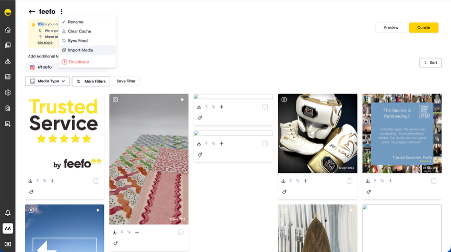
Open the “Import Media” modal
- Inside your collection, click Import Media (often in the three‑dot menu or top bar).
- A popup titled Upload Media will appear with three tabs:
-
- File
- CSV File
- URL
Make sure File is selected.
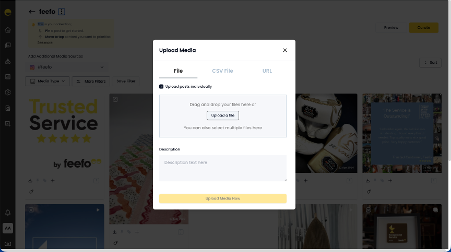
Upload files from your device
- Ensure Upload posts individually is checked (recommended so each file becomes its own post).
- Drag and drop your images/videos into the upload area, or click Upload a file and select them from your device.
- Optionally, add a Description (e.g. campaign name, notes).
- Click Upload Media Now.
Result:
Your files will appear as new posts in the collection, ready to be curated, tagged, and added to widgets.
Import Instagram reels by URL (single or multiple)
Use this when you have specific reel links you want to bring in quickly.
Open the URL import tab
- Click Import Media.
- Select the URL tab.
You’ll see a field like:
- “Enter post URLs (one per line or comma‑separated)”
- And an option to Upload CSV with URLs & Product IDs.
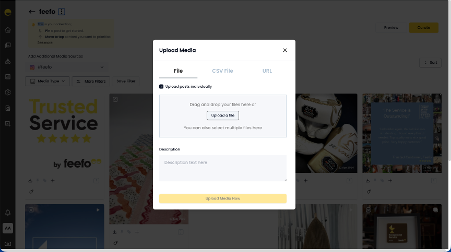
Paste reel URLs
- Copy the reel URL(s) from Instagram.
- Paste them into the text box:
- One per line, or
- Separated by commas
- Optionally, attach a CSV with URLs + product IDs (see next section).
- Click Upload Media Now.
Result:
Those specific reels will be imported into your collection as posts.
Bulk import via CSV (URLs + Product SKUs)
This is ideal when you have many posts to import and want to auto‑tag products at the same time.
Open the CSV tab
- Click Import Media.
- Select the CSV File tab.
You’ll see:
- A checkbox Upload posts individually (keep this checked).
- A button Upload CSV file.
- A link Download Sample.
Prepare your CSV
- Click Download Sample to get the correct format.
- Open the sample in Excel/Google Sheets.
- Fill in the columns, typically:
- URL – the post or reel URL
- Product SKU / Product ID – the product you want to tag
- (Optional) Description or other fields, depending on your setupExample rows:
- Save the file as CSV.
|
URL |
Product SKU |
|
https://www.instagram.com/p/ABC… (instagram.com in Bing) |
SKU‑DOG01 |
|
SKU‑TEE02 |
Upload the CSV
- Back in Feefo, click Upload CSV file.
- Select your CSV.
- Click Upload Media Now.
Result:
- All URLs in the CSV are imported as posts.
- Products are auto‑tagged based on the SKU/Product ID.
- This is perfect for shoppable galleries and mass tagging.
Combining multiple sources in one collection
You don’t have to choose just one method. A single collection can have:
- Hashtags (e.g. #brandname, #campaign)
- Tagged posts (customers tagging your brand)
- Usernames (influencers, ambassadors, your own brand account)
- Reels as a source
- Manual uploads (photoshoots, internal assets)
- URL imports (specific posts/reels)
- CSV imports (bulk URLs + product SKUs)
Merchant‑friendly way to think about it:
“This collection is my master library for this brand/campaign.
I connect all the places where content lives, and Feefo keeps it in one place for me.”
Curate and manage your imported content
Once content is in your collection, you can:
- Pin posts you want to prioritise
- Move to top content you want to highlight
- Tag products (if not already auto‑tagged)
- Filter by media type, date, source, etc.
- Preview how it will look in your widget
- Curate to approve/reject content before it goes live
This is where you turn a big pool of content into a polished, on‑brand gallery.
Practical examples for merchants
Example 1 – Always‑on brand collection
- Add hashtags: #brandname, #brandpets
- Add tagged posts: @brandname
- Add usernames: your brand + 3 key influencers
- Occasionally:
- Import reels by URL from special campaigns
- Upload photoshoot images via File
- Use CSV to bulk import and tag products
Example 2 – Product launch campaign
- Create a new collection: “Spring Launch 2026”
- Add campaign hashtag: #brandSpring26
- Add 2–3 influencer usernames
- Import all campaign reels via CSV (URLs + SKUs)
- Upload studio shots via File
- Curate and pin the best content to the top