
TABLE OF CONTENTS
Overview
This guide explains how to install the Feefo Conversion Tracking Script inside Shopify using Customer Events → Custom Pixels.
The setup takes less than 2 minutes and enables accurate UGC attribution, conversion tracking, and performance analytics.
Open Shopify Settings
- Log in to your Shopify admin.
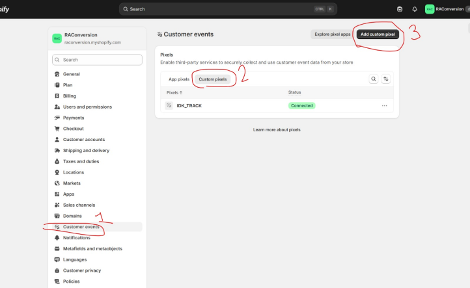
- Click Settings (bottom‑left).
- Select Customer events from the settings menu.
Screenshot 1 — Shopify Settings → Customer events
Open the “Custom pixels” Tab
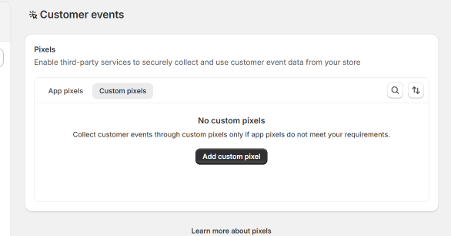
- Inside Customer events, click the Custom pixels tab.
- Click Add custom pixel.
Screenshot 2 — Custom pixels tab + Add custom pixel button
Create a New Pixel
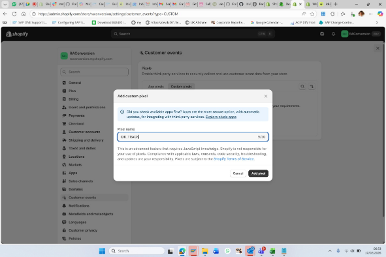
When prompted, enter the pixel name:
IDK_TRACK
Then click Add pixel.
Screenshot 3 — Add custom pixel modal
Paste the Feefo Conversion Tracking Script
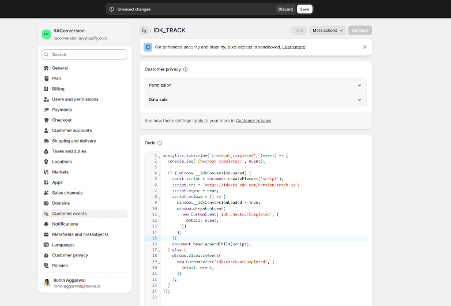
Delete any existing content in the code editor and paste the following script:
analytics.subscribe('checkout_completed', (event) => {

console.log('Checkout completed:', event);


if (!window.__idkConversionLoaded) {

   const script = document.createElement('script');

   script.src = 'https://Feefo-cdn.com/version/track.js';

   script.async = true;

   script.onload = () => {

     window.__idkConversionLoaded = true;

     window.dispatchEvent(

       new CustomEvent('idk:checkoutCompleted', {

         detail: event,

       })

     );

   };

   document.head.appendChild(script);

} else {

   window.dispatchEvent(

     new CustomEvent('idk:checkoutCompleted', {

       detail: event,

     })

   );

}

});
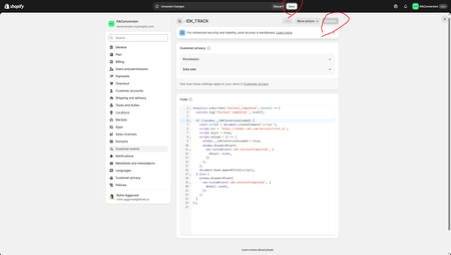
Screenshot 4 — Code editor with script pasted
Save and Connect the Pixel
- Click Save in the top‑right corner.
- After saving, click Connect to activate the pixel.
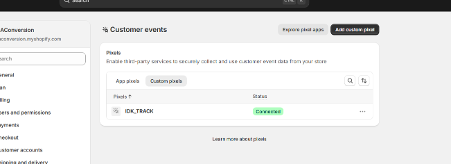
You should now see a green Connected status.
Screenshot 5 — Pixel connected (green)
Installation Complete
Your Shopify store is now sending checkout completion events to Feefo.
This enables:
- Accurate conversion attribution
- UGC performance analytics
- Creator ROI tracking
- Campaign measurement
- End‑to‑end funnel visibility
No further action is required.
Troubleshooting (Optional)
Pixel not firing?
- Ensure the pixel is Connected
- Ensure the script URL is correct
- Ensure no ad blockers are blocking custom pixels
- Ensure checkout is completed on a live domain (not preview)