
TABLE OF CONTENT
- Introduction
- Where to find layout options
- Your layout options
- Slide and carousel settings
- Grid
- Collage
- Carousel
- 3D
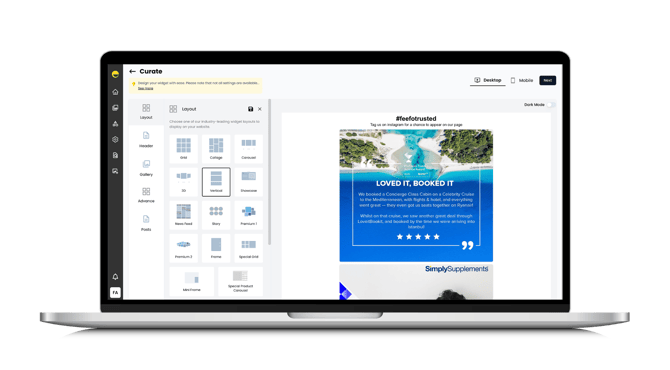
- Vertical
- Showcase
- News Feed
- Story
- Premium 1
- Premium 2
- Frame
- Special Grid
- Mini Frame
- Special Product Carousel
Introduction
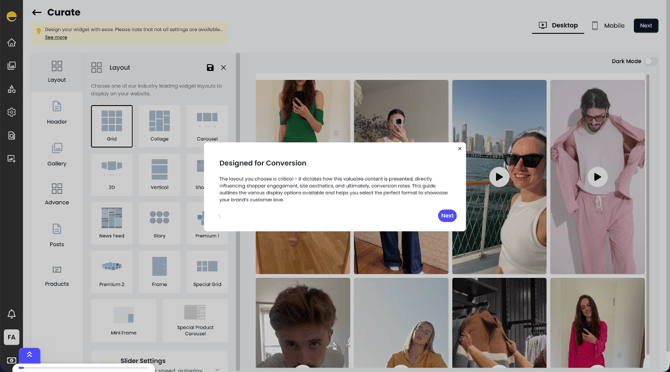
The layout you choose is critical - it dictates how this valuable content is presented, directly influencing shopper engagement, site aesthetics, and ultimately, conversion rates. This guide outlines the various display options available and helps you select the perfect format to showcase your brand’s customer love.
.png?width=151&height=57&name=Tooltip%20(1).png)
Where to Find Layout Options
You manage your display settings within the Feefo Social Tab. You need to select a collection to curate to display the various layouts available.
- Navigate to the Feefo Social section in your Feefo Hub dashboard.
- Go to Collections and select the one you wish to edit.
- Click Curate.
- Select Layout.
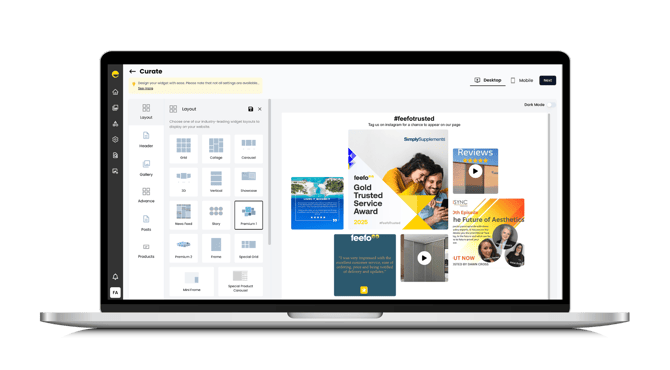
Your Display Options
Feefo Social offers a diverse range of layouts, allowing you to tailor the display to suit any page or section of your website.
| Layout Category | Available Layouts | Best Used For |
| Gallery Views (Volume Showcase) | Grid, Collage, Special Grid | Ideal for displaying a large collection of content on dedicated pages or full-screen sections. Provides a dense, structured overview of customer submissions. |
| Compact & Dynamic (Space Saving) | Carousel, Special Product Carousel, 3D | Perfect for product pages or limited-space areas (like home page banners). These formats allow users to scroll or swipe through content without taking up too much vertical room. 3D offers a unique, immersive visual experience. |
| Continuous Feeds (Social Style) | News Feed, Vertical, Story | Great for mimicking familiar social media streams. Presents content in a continuous, flowing scroll, making it highly engaging and suitable for blog sidebars or dedicated content hubs. |
| Minimalist & Focused (Impactful Snippets) | Frame, Mini Frame | Use these for simple, contained displays, such as featuring a single key review or product photo in a clean, unobtrusive box on a checkout page or thank-you page. |
| Premium Designs (High-Conversion) | Premium 1, Premium 2 | Elevated, custom-designed layouts optimised for maximum visual impact and higher click-through rates. Consult your Customer Success Manager (CSM) for the strategic benefits of these options. |
Slide and Carousel Settings
These settings manage the animation, speed, and navigation elements when using a slider or carousel layout for your gallery.
| Setting | Type | Description |
| Special Carousel | On/Off | Toggles the use of an advanced, animated carousel design, providing a visually distinct presentation from the standard slider. |
| Switch layout to slider | On/Off | Enables the slider/carousel layout for the gallery, moving content horizontally rather than in a fixed grid. |
| Auto play | On/Off | When the slider layout is active, toggles whether the carousel scrolls automatically without user input. |
| Auto play speed | Number (ms) | Sets the speed of the automatic scroll. This value is typically set in milliseconds (ms), where a lower number is faster. |
| Arrow background colour | Hex Code | Sets the background color of the container or area surrounding the navigation arrows (left/right). |
| Arrow colour | Hex Code | Sets the color of the navigation arrow icons themselves. Ensure high contrast against the Arrow background colour. |
| Arrow Position | Inside, Center, or Outside | Controls the vertical positioning of the navigation arrows relative to the content area. |
| Centred slides | On/Off | When active, ensures that the currently viewed post/image slide is perfectly aligned to the centre of the slider viewport. |
Grid
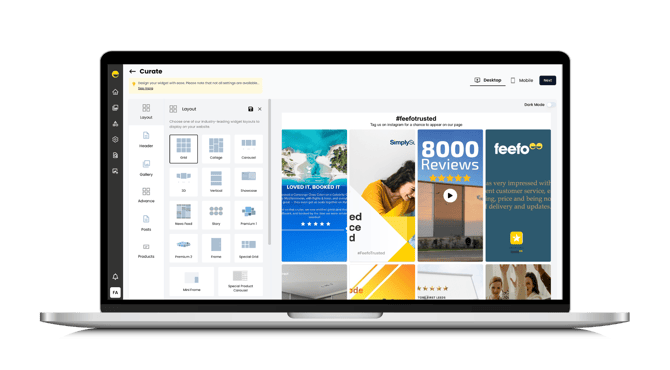
Best placement: Dedicated "Reviews" Page, Homepage (lower half)
Benefit: A structured, clean way to display a large volume of reviews and customer media. Easy to scan.
Collage
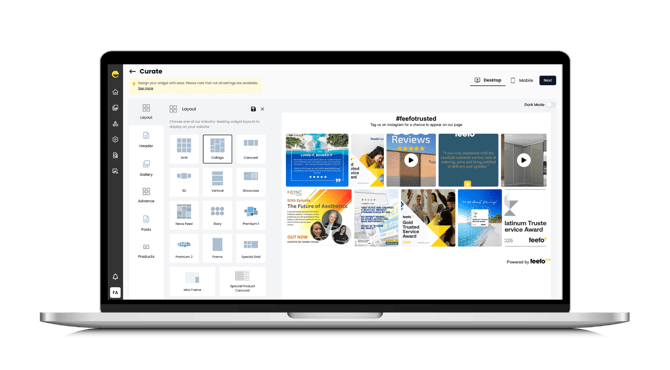
Carousel
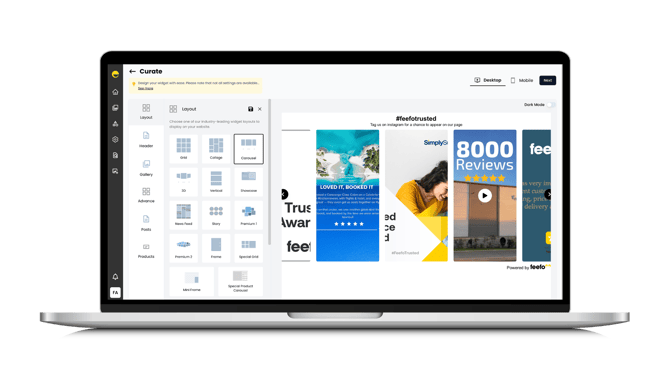
Best placement: Homepage (middle section), Dedicated "Media" Gallery
Benefit: Visually rich, perfect for showcasing a mixture of text reviews and user-generated images/videos for high engagement.
3D
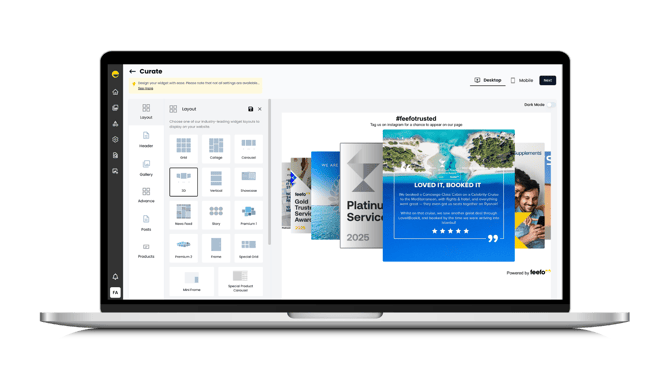
Best placement: Product Pages, Homepage (as a featured element)
Benefit: Highly engaging and visually distinct, drawing attention to your best ratings and media.
Vertical
Showcase
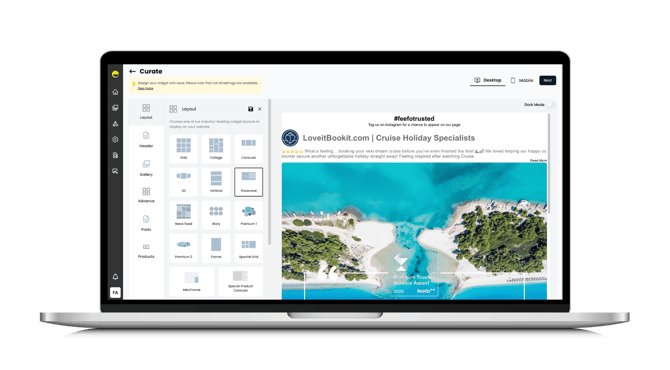
Best placement: Homepage (prominently), Dedicated "Testimonials" Page
Benefit: Highlights your absolute best reviews with rich text and media, acting as a powerful, curated testimonial section.
News Feed
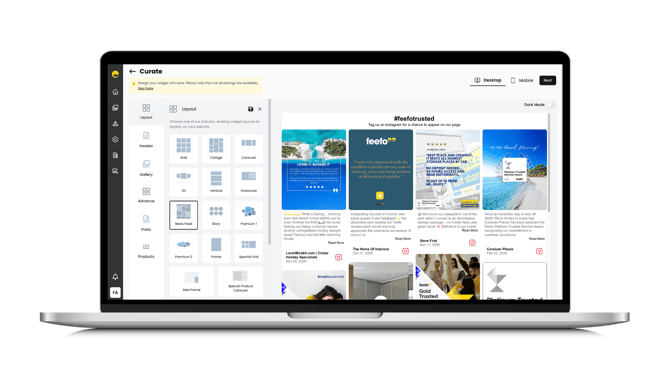
Best placement: Dedicated "Reviews" Page, Brand Story/About Us page
Benefit: Presents reviews in a familiar social media format, giving a fresh, up-to-date look at customer experiences.
Story
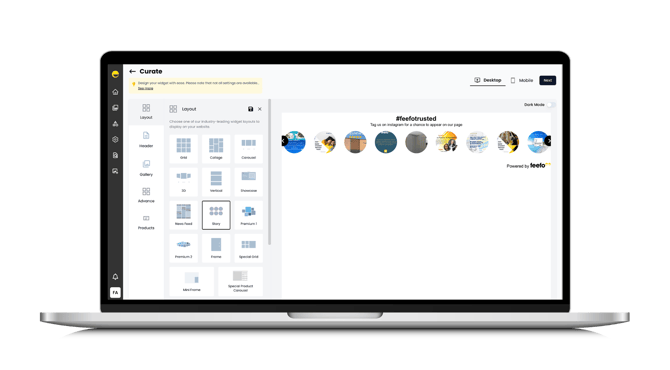
Best placement: Homepage (near the top, like an Instagram story), Mobile Site
Benefit: Highly engaging, transient format that mimics popular social media stories, perfect for a quick, impactful view on mobile.
Premium 1
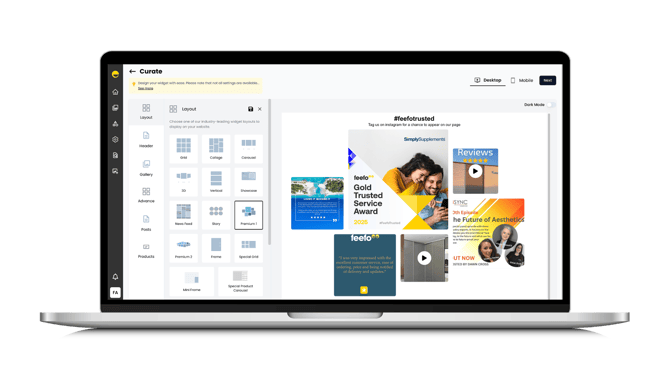
Best placement: Homepage (Featured Block), About Us page
Benefit: Sophisticated, polished designs for businesses that want to highlight their reviews with a clean, premium visual aesthetic.
Premium 2
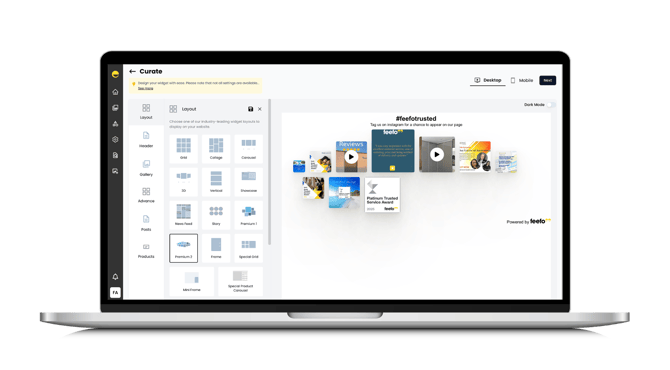
Best placement: Homepage (Featured Block), About Us page
Benefit: Sophisticated, polished designs for businesses that want to highlight their reviews with a clean, premium visual aesthetic.
Frame
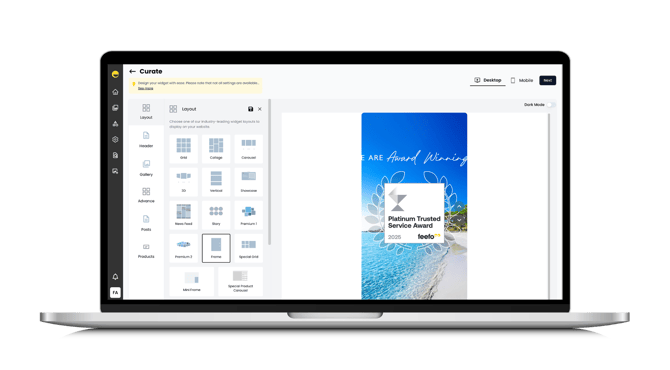
Best placement: Blog Posts, Case Study Pages, Partner Pages
Benefit: Simple embedded frame to display reviews relevant to the specific content, adding contextual social proof.
Special Grid
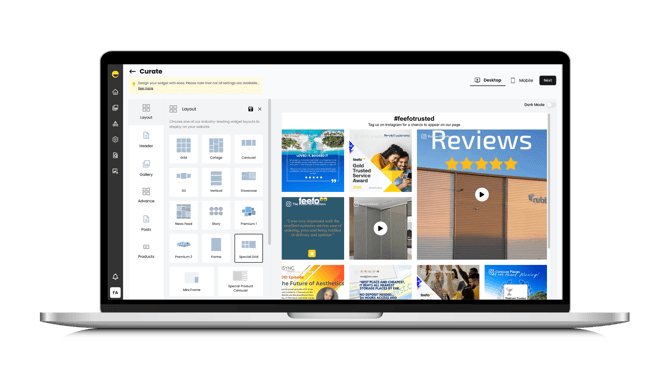
Best placement: Highly visual category pages (e.g., fashion, home decor)
Benefit: A visually optimised grid specifically designed for a high volume of beautiful user-generated media and product reviews.
Mini Frame
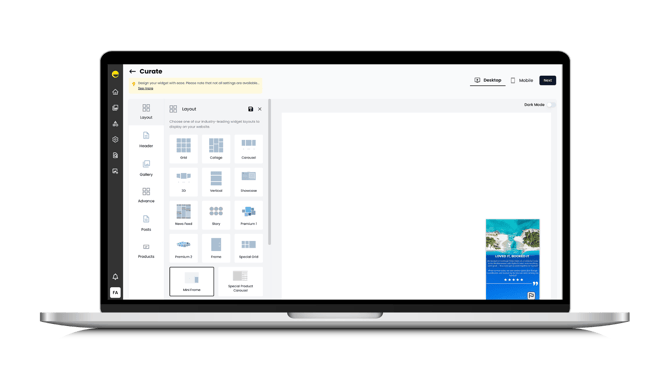
Best placement: Product Pages (small corner embed), Checkout page sidebar
Benefit: Non-intrusive, continuous display of your overall rating and recent score, maintaining trust during the final steps.
Special Product Carousel
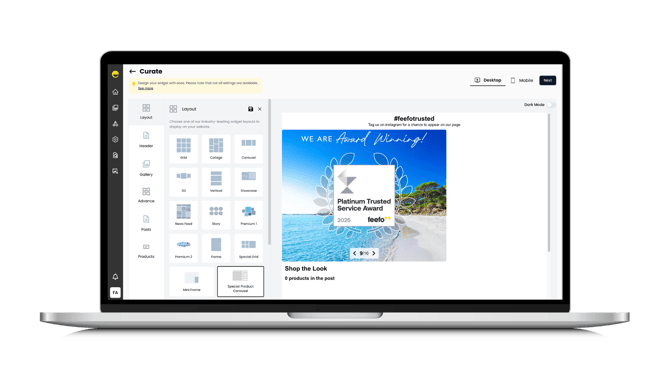
Best placement: Product Pages (for related items), Category Pages
Benefit: Focuses specifically on driving purchase intent for individual items.