
Shopify connection is all set up and you are ready to send sales data to Feefo? Follow the below step-by-step guide to get your data flowing to Feefo’s Hub instantly.
-
Log into the Feefo Hub and navigate to the Integrations Hub, under the Integrations option.
- Navigate to the Templates page

-
On the Marketplace tab, find the Shopify card or search for this through the search bar.
- Select Install. Here you will see a Template flow set-up ready to send new orders in Shopify to Feefo to trigger a feedback request.

- Click Continue.
- Here you will either see your existing Shopify connection or you will need to Grant Access. How to connect your Shopify platform can be found here.

- Once you have selected the account you would like to use for this Template, click Continue.
- Select the gear icon to customise the Template and map your fields.

- Click on the Shopify card at the top to add in any filters based on: Financial Status, Fulfilment Status or Order Status.
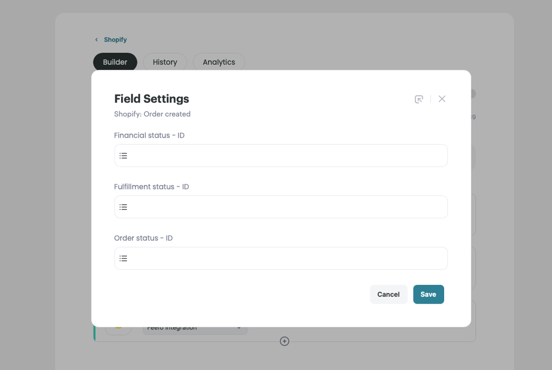
- Once you are happy, click the three dots on the card and select Test the step. This will pull data through so you can validate it is the correct format. If you are happy, select Continue with the selected data button at the bottom of the sample data.
- Click on the Feefo card at the bottom to map your fields. Here you can search by clicking in the textbox and searching in the dropdown menu. All required fields are highlighted in red.
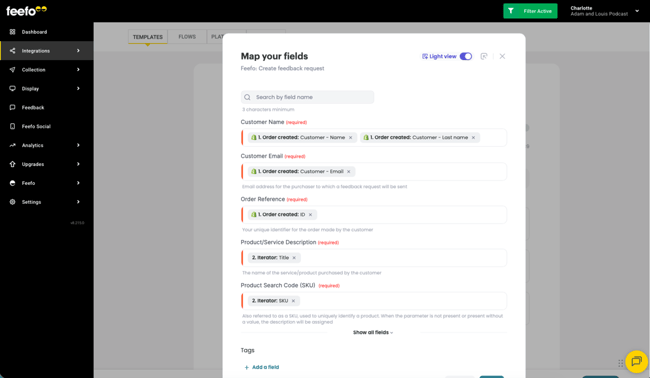
- Add Tags at the bottom of the "Map your fields" section. Simply add the tag type and map it to the corresponding field in your connected platform. Tags are one per field in Integration Hub. The below image has an example underneath:

Name = campaign (Tag Type), String (type of field from your CRM) and in the final box, you will be able to select a field from your connected platform. - Test the Feefo card by clicking the three dots on the card and select Test the step.
- If you are happy with how your data is mapped from Shopify to the Feefo fields, time to start your flow! Click on the Start button.